As I was configuring this solution, I came across multiple articles with confusing configuration details. This one provided the most accurate configuration, but I still had a few details to clarify.
- Most likely, your user certificate is signed with an intermediate CA; this is the one you need to import as Trusted/Internal CA.
- Check:
- CA Only
- SSL Client
- Skipp Check for CA …
- You can not manually choose CA to be used in authentication; FTD enumerates all of them until it finds the right one.
Once CA authentication is working, you may start getting certificate pop-ups if multiple certificates are present in the certificate store. In addition, you may have Windows and MacBooks connecting to VPN with different certificate attributes. Time to modify VPN XML profile.
At first, I was using “DN” certificate matching attributes in the VPN profile editor to minimize user interaction, but I’ve discovered that it is hard to match DN fields for both Windows and Macs. And if different attributes are used in an XML VPN profile, the result is logical AND, causing a mismatch and failures.
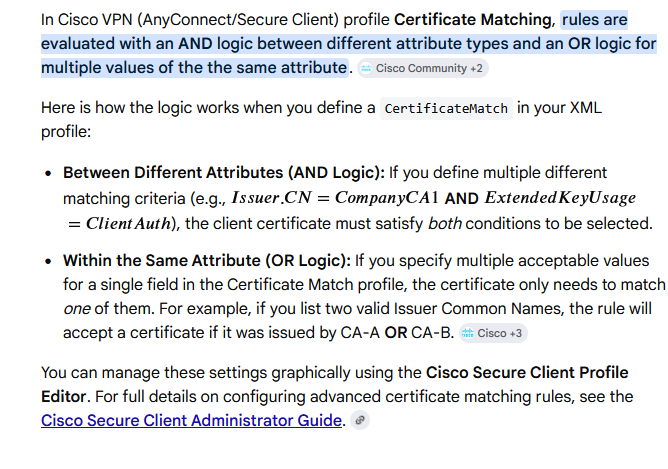
At the end, I decided to use EKU parameter “ClientAuth,” which helps filter out unwanted certs.

Some useful FTD debug commands are below:
Certificate authentication is failing:
debug crypto ca 14
debug aaa shim 128
debug aaa common 128
SAML authentication is failing:
debug aaa shim 128
debug aaa common 128
debug webvpn anyconnect 128
debug webvpn saml 255